
How To
How to Turn Off Future Activity Tracking on Facebook and Instagram

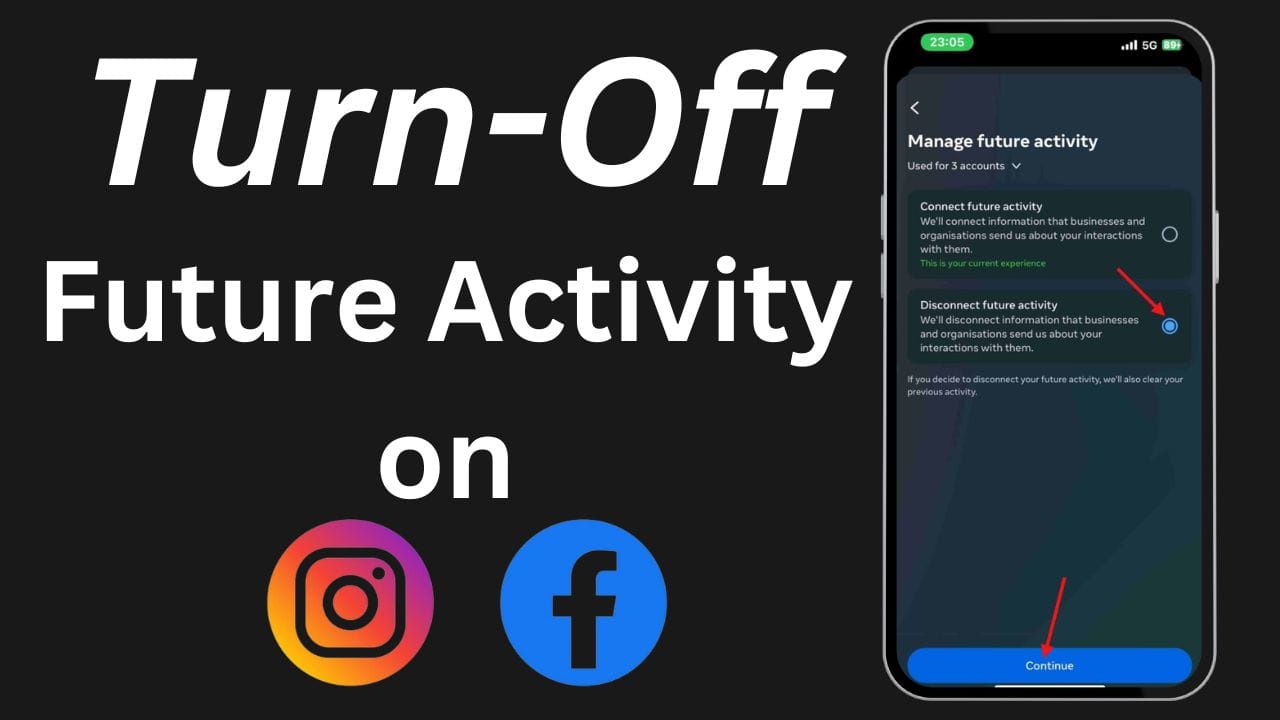
Ok, so I have noticed that whenever you search for any product on shopping apps like Amazon or Flipkart, you will see the ad, or we can say the product, advertisement on Facebook as well as Instagram. This is because Meta (Facebook and Instagram), collects your information and the option is turned on by default.
How to Turn Off Activity on Facebook or Instagram?
So, to turn this off, you have to follow the steps that are listed below:
First, you have to open the Facebook/ Instagram app whichever you are using.
Note- If you are using both, then it’s up to you which you want to open.
Firstly, I am going to tell you the process in the Facebook app.
After opening the Facebook app, you have to tap on Menu.

- Then, you have to scroll down and tap on Settings & Privacy > Settings .
- After that, you have to tap on See more in Account Centre.


Then, you have to tap on Your information and permissions > Your activity off Meta technologies > Manage Future Activity > Disconnect future activity.


After selecting Disconnect future activity, you have to click on the Continue button > Disconnect future activity.


- That’s it.
Now, let’s move on to the Instagram one. So, after opening the Instagram app,
- You have to tap on the Profile Picture.
- Then, click on the three lines icon which is present in the top right side.

After that, you have to tap on the Account Centre.

Then, you have to tap on Your information and permissions > Your activity off Meta technologies > Manage Future Activity > Disconnect future activity.

After selecting Disconnect future activity, you have to click on the Continue button > Disconnect future activity.

That’s it.
Do you already know about this? If yes, then do let us know
Stay updated with latest tech news
Follow TechiBoy on Google to get updates on smartphones, gadgets, software updates, and more.




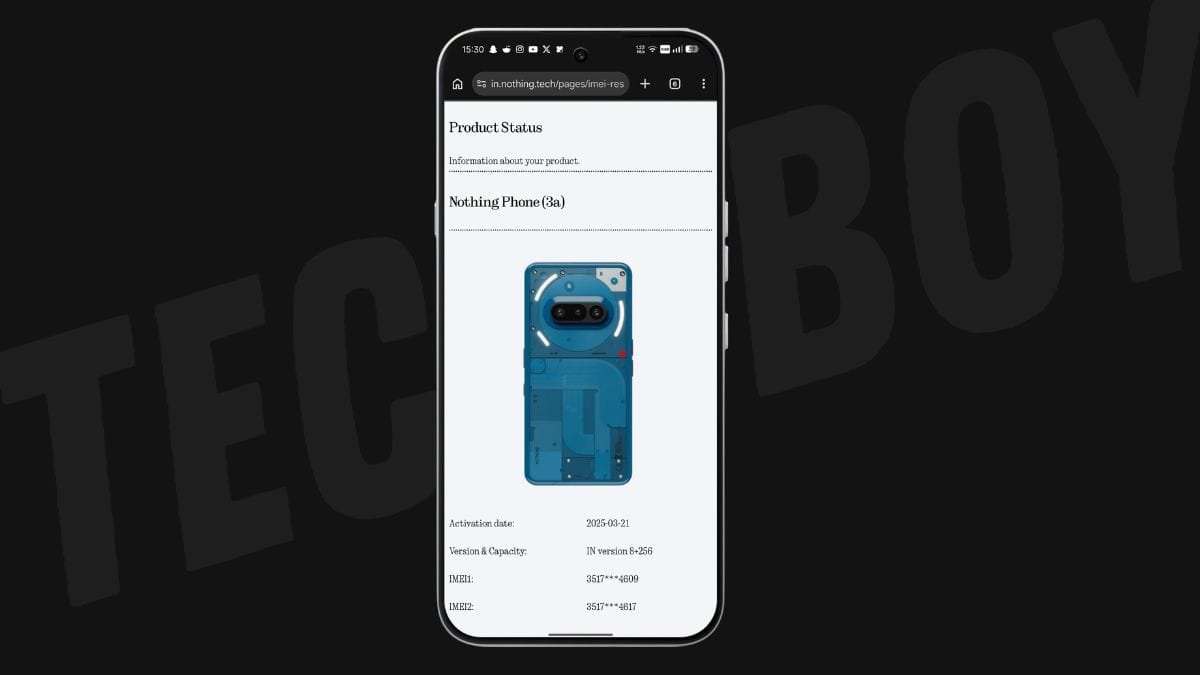
Whenever you buy a new Nothing smartphone, it’s always a good idea to check its warranty period. Whether you own the latest Nothing Phone (4b) or an older model like the Nothing Phone (1), the process is simple and only takes a few minutes.
Nothing has expanded its smartphone lineup over the years, and the same warranty checking method works for all supported models.
Supported Nothing Phones
You can use this method to check the warranty status of:
- Nothing Phone (1)
- Nothing Phone (2)
- Nothing Phone (2a)
- Nothing Phone (2a) Plus
- Nothing Phone (3)
- Nothing Phone (3a) Pro
- Nothing Phone (4a)
- Nothing Phone (4a) Pro
- Nothing Phone (4b)
- CMF Phone 1
- CMF Phone 2 Pro
How to Check Your Nothing Phone Warranty
Nothing lets you verify your device warranty through its official Product Status page. You’ll need your phone’s IMEI number or Serial Number (S/N).
Follow these steps:
- Open the Phone app on your Nothing device.
- Dial
*#06#. - Copy any one of the displayed IMEI numbers (or note down the Serial Number).
- Open the Nothing Product Status page in your web browser.
- Paste the IMEI or Serial Number into the search box.
- Tap Submit.

The website will display your device details along with its warranty status, activation date, and other relevant information.
Alternative Method to Find the IMEI Number
If you don’t want to use the dialer code, you can find your IMEI number from the Settings app.
- Open Settings.
- Go to About phone.
- Scroll down to view your IMEI and Serial Number.
You can then copy the IMEI and use it on the Nothing Product Status page to check your warranty.
Why Should You Check Your Warranty?
Checking your warranty status helps you:
- Confirm whether your device is still under warranty.
- Know the warranty expiry date before visiting a service centre.
- Verify warranty details when buying a used Nothing phone.
- Ensure your device information is correctly registered.
That’s it! With just your IMEI number or Serial Number, you can quickly check the warranty status of any Nothing Phone or CMF Phone through Nothing’s official Product Status page.
Stay updated with latest tech news
Follow TechiBoy on Google to get updates on smartphones, gadgets, software updates, and more.

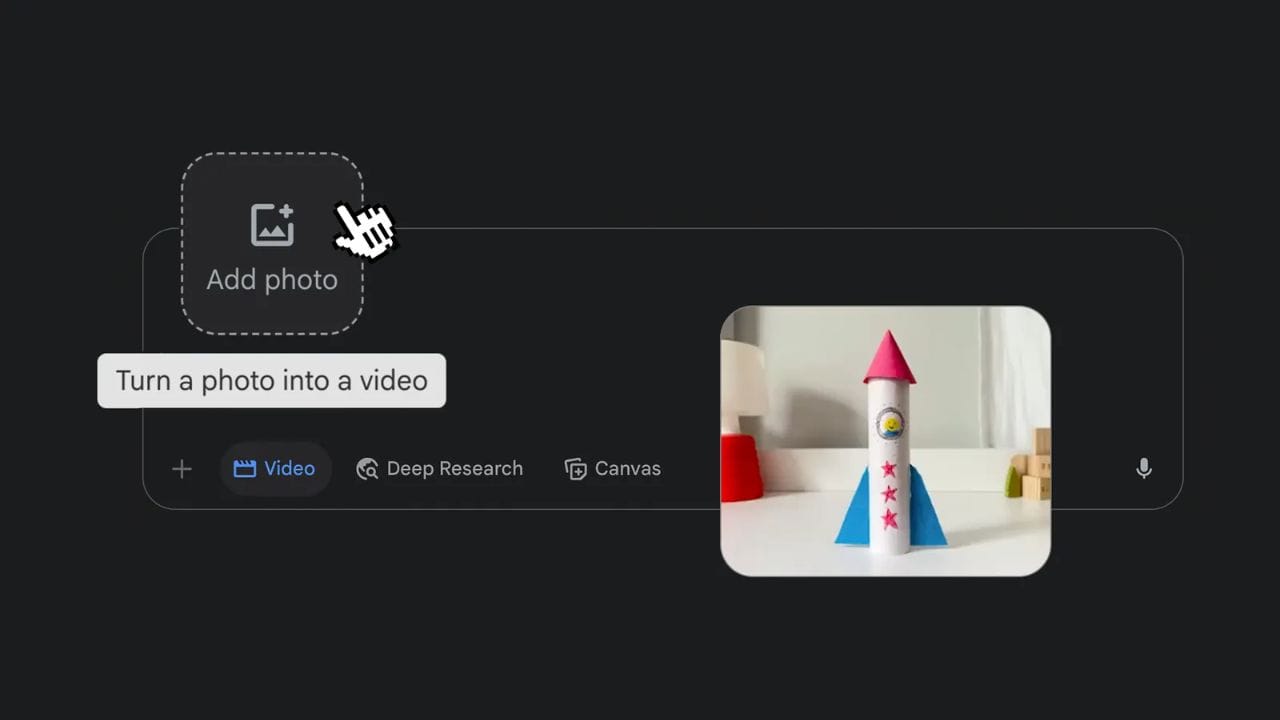
Google has added a new feature to Veo 3, the video creation tool in its Gemini AI platform. Now, users can turn still images into short videos using artificial intelligence.
How It Works
With this new update, users can upload a photo and Gemini will create an 8-second video clip from it. The video will also include sound, based on your instructions.
To use the feature:
- Go to the Videos option in the tool menu.
- Upload an image.
- Describe the scene you want, and give any audio instructions.
- Gemini will then generate the video, which you can download or share.
Users can also give thumbs up or down feedback to help Google improve the tool.
Who Can Use It?
This feature is available now for Google AI Pro and Ultra subscribers in select countries. The same function is also available in Flow, Google’s AI tool for filmmaking.
Rapid Growth
Google shared that more than 40 million videos have already been created using Veo 3 through the Gemini app and Flow in the last seven weeks. With this new photo-to-video option, that number is expected to grow even faster.
AI Watermarks
All videos made with this tool will include both a visible watermark and a hidden SynthID digital watermark to clearly mark them as AI-generated.
Stay updated with latest tech news
Follow TechiBoy on Google to get updates on smartphones, gadgets, software updates, and more.
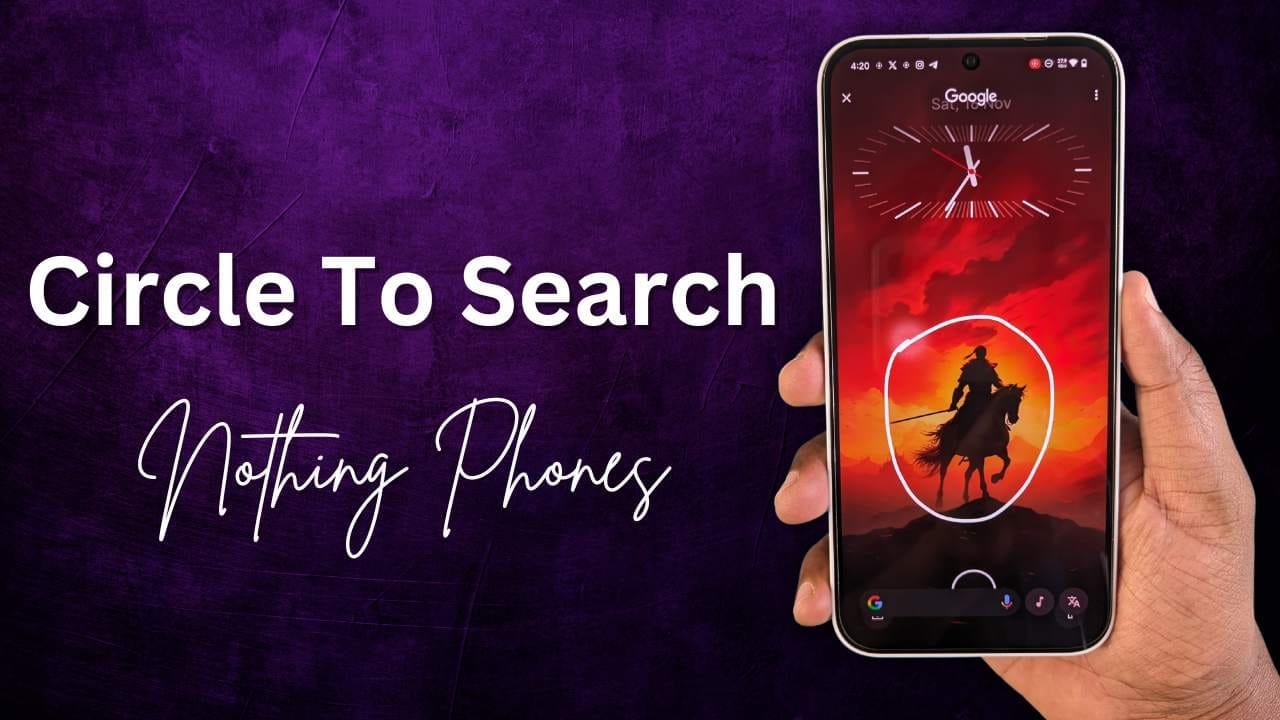
The “Circle to Search” feature is not officially available on Nothing Phones yet, even with the Nothing OS 3.0 Beta based on Android 15. However, there’s a workaround using an app called MiCTS that enables this functionality on Nothing Phones.
What is Circle to Search?
“Circle to Search” is a Google feature that lets you search for information on your screen using gestures like circling, highlighting, or tapping. It’s useful for:
- Researching topics like restaurants or movies.
- Identifying objects, animals, or landmarks in videos.
- Learning about new things instantly from images or text.
How to Enable Circle to Search on Nothing Phones
You can use the MiCTS app to enable the Circle to Search feature on your Nothing Phone, whether it’s Nothing Phone (1), Phone (2), Phone (2a), Phone (2a) Plus, or CMF Phone 1. Here’s how:
Step 1: Install the MiCTS App
- Download and install the MiCTS app on your Nothing Phone.
- The installation process is straightforward and works on Nothing OS 3.0 or earlier.
Step 2: Set Up Gesture for Easy Access
Since the app doesn’t work directly with screen gestures by default, you need to assign it to a shortcut:
- Go to Settings on your Nothing Phone.
- Navigate to Special Features → Gestures.
- Select Double Press Power Button and assign it to MiCTS.
Now, whenever you double-press the power button, the Circle to Search feature will be activated.
How the Official Circle to Search Works
Once officially rolled out with Android 15, Circle to Search can be activated on supported Android phones by:
- Long pressing the Home button (for 3-button navigation).
- Long pressing the navigation handle (for gesture navigation).
- Circling, highlighting, or tapping on the screen to search for relevant information.
Search results appear at the bottom of the screen, making it easy to learn more about:
- Videos, images, or texts.
- Landmarks, movies, or dog breeds.
- Homework topics and more.
For now, the MiCTS app is a great solution for Nothing Phone users who want to try this innovative feature.
Stay updated with latest tech news
Follow TechiBoy on Google to get updates on smartphones, gadgets, software updates, and more.