
Nothing
How to Easily Adjust Your Nothing Phone’s Flashlight Brightness Using This App


Tech enthusiasts with Nothing phones have a new feature—an application that enables customizable control over the device’s flashlight brightness. While the Nothing OS currently lacks this feature, the app FlashDim, can adjust flashlight brightness through multiple levels ranging from minimum to maximum.
The feature, commonly seen in devices like the iPhones & OnePlus, allows users to increase or decrease the intensity of their flashlight. This functionality is particularly useful in different lighting conditions where users may not need the full power of the flashlight, or may require more light than the standard setting offers.

Despite its utility, the FlashDim app has encountered compatibility issues with some Nothing phone models, such as the Nothing Phone (1) and Phone (2). Efforts to install the app forcibly via APK files have resulted in errors, suggesting that these devices may not yet be compatible with the app. Currently, this app is only working on devices like Nothing Phone (2a), Phone (2a) Plus and CMF Phone 1.
You will get up to 6 levels of flashlight control for the Phone (2a) and Phone (2a) Plus, and for the CMF Phone 1, you get 13 levels.
This app also provides a quick setting tile for turning on the flashlight in Low, Mid, and High settings. You can easily place it in your phone’s quick settings panel.
I hope this comes features come in the Nothing Phones directly in the Nothing OS instead of downloading another app and using it. Some people might think, ‘We have Glyph Lights on the back, so why use a flashlight in dim mode?’ The key question here is whether the device’s hardware supports it or not. That’s why I made a video on this topic and wrote about it in this story.
Stay updated with latest tech news
Follow TechiBoy on Google to get updates on smartphones, gadgets, software updates, and more.





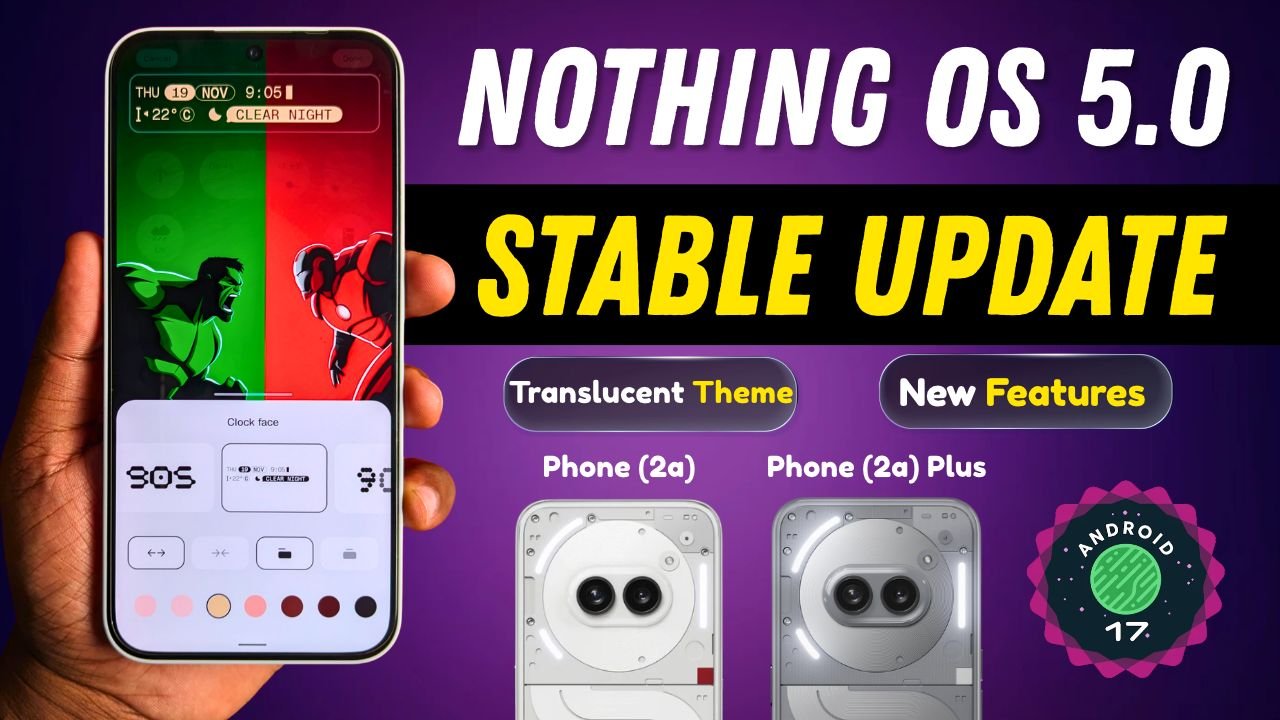
Nothing has started rolling out the Nothing OS 5.0 Stable update, based on Android 17, for the Nothing Phone (2a) and Nothing Phone (2a) Plus. The new update brings several new features, visual changes, camera improvements, new widgets, and bug fixes.
The update is now rolling out to users who were previously using the Nothing OS 5.0 Open Beta.
Nothing OS 5.0 Update Size
According to the update details, the update size is different for beta and non-beta users.
- Beta users: 361 MB
- Non-beta users: 3.15 GB
Build number: Nothing OS C5.0-261112-193
What’s New in Nothing OS 5.0 Stable Update?
The Nothing OS 5.0 update brings several new features and improvements. Here are the major changes. By the way these changes were all present in Nothing OS 5.0 open beta update for Phone (2a) Series.
New Features
Nothing has introduced a new Glyph app, designed specifically for the Glyph Interface. It offers quicker access and a refreshed interactive experience.
The update also brings separate Quick Settings and Notification panels, giving users a cleaner layout and easier access.
Users can now arrange multiple home screen icons in bulk by long-pressing the home screen and selecting the Arrange option.
There is also a new three-colour status bar indicator for sensitive activities such as location access and AI processing. This helps users know when certain device activities are taking place.
Visual Changes
Nothing OS 5.0 introduces a new Translucent theme for the Launcher. It features a frosted-glass design with subtle accent colours inspired by the wallpaper.

Other visual improvements include:
- Lock screen customisation now supports setting a colour for the clock face.
- Two new lock screen clock faces.
- Updated wallpaper gallery with a new wallpaper style.
- New Geist typeface and redesigned Settings UI.
- Improved status bar icons and animations.
- Smoother interactions and transition animations.
New Widgets
Nothing has also added new widgets to improve the home screen experience.
- Collector Widgets: Allows users to turn their photos into different-style decorations on the home screen.
- Away Time Widgets: Helps users track their time away from the screen.
- Glyph Timer: Now supported in the widget drawer.
Widget Blur Effect Difference Between Devices
There is also a difference in the widget experience across Nothing devices.
On the Nothing Phone (2a) and Phone (2a) Plus, opening widgets such as Glyph Timer, Collector, Away Time, and other widgets does not show a blurred background effect.
However, this blur background effect is available on the Nothing Phone (4a) Pro and Nothing Phone (3).
This means the widget experience is not exactly the same across all Nothing smartphones, even with the Nothing OS 5.0 update.
Camera Improvements
The camera app has received several improvements with this update.
Nothing has introduced Tuning with seven adjustable effects and a reset option. Presets have also been upgraded with easier editing, richer cards, Playground integration, and a new 2×2 widget.
Other camera improvements include:
- Enhanced video creation with Filters and Tuning support.
- H.265 video encoding.
- Improved recording and zoom.
- Better close-up shooting and QR scanning.
- Improved Google Lens and Motion Photo playback.
- Refreshed Camera UI, controls, and animations.
General Improvements and Bug Fixes
The update also brings several system-level improvements.
Expanded Dark Theme is now available, allowing users to apply Dark Theme to more apps that do not support it natively.
There is also a new Enhanced HDR Brightness option that lets users customise HDR intensity for a more comfortable viewing experience.
Other changes include:
- Depth (Beta) wallpapers now support pinch-to-shrink.
- Improved Live Updates with a better status bar experience.
- New Nothing 3D Emoji in Gboard.
- Improved lock screen shortcut interactions.
- Bluetooth devices can now be connected or disconnected with a single tap from Quick Settings.
- Security improvements and fixes for reported issues.
How to Download Nothing OS 5.0 Stable Update?
If you own a Nothing Phone (2a) or Nothing Phone (2a) Plus, you can check for the latest update by following these steps:
- Open Settings on your phone.
- Go to System.
- Tap System Update.
- Check for the Nothing OS 5.0 update.
- Download and install it if available.
The update is rolling out gradually, so it may take some time to reach all users.
Note: Your phone may temporarily heat up and consume more power during the update process. This should return to normal after the installation is complete.
Stay updated with latest tech news
Follow TechiBoy on Google to get updates on smartphones, gadgets, software updates, and more.
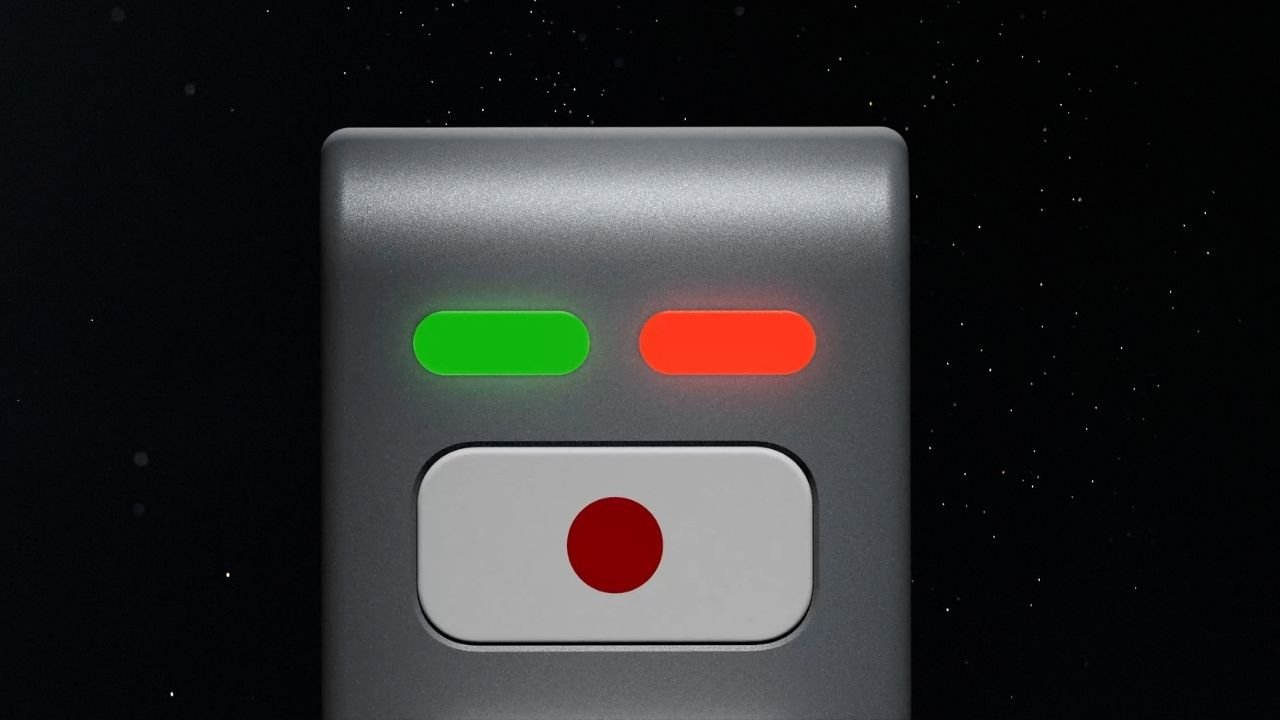
Nothing’s CEO Carl Pei has teased an upcoming AI device on X (formerly Twitter). The device features a unique LEGO-inspired design with a simple and minimalistic look. While the company has not revealed much about it yet, the teaser gives us a first look at what could be its next interesting product.
The upcoming device appears to feature a metal-based body with a matte finish. It does not have a display, but there are two LED lights on the front, one red and one green. Below the lights, there is a physical button with a red dot on a white background.
What Can We Expect From Nothing’s AI Device?
Nothing has not shared any details about the device’s features or how it will work. However, it could work alongside a companion smartphone for internet connectivity. Users may be able to interact with the device to ask questions, get information, and perform different AI-related tasks.
The decision to go with a screen-less design could also be intentional. Nothing has previously spoken about reducing screen time and helping users avoid unnecessary distractions.
The company has introduced several features to reduce distractions, especially at night. Its approach includes the Glyph Interface, Essential Notifications, and a minimalistic monochrome interface.
Rather than focusing only on smartphone specifications, Nothing has been exploring ways to make technology less distracting. Its upcoming AI device could take this idea further by offering a different way to interact with technology without constantly scrolling through social media apps.
Could It Be Nothing Ear (3) Pro With AI Features?
Another possibility is that Nothing’s upcoming AI device could be related to its audio product lineup. It could potentially be a new Nothing Ear (3) Pro with AI features, rather than an entirely new product category.
The screen-less design, physical button and LED indicators could point towards a device designed for quick voice interactions and AI-powered assistance.
However, this is only speculation based on the teaser. Nothing has not confirmed whether the device is a new pair of earbuds, an AI accessory, or an entirely different product.
Could the Device Be Related to Pokémon Kingdra?
There is another interesting detail that could be connected to Nothing’s upcoming AI device. The device may be related to Kingdra, a Water/Dragon-type Pokémon with Pokédex number #0230.

Nothing has previously teased Kingdra in one of its posts on X. This has led to speculation that the upcoming device could carry a model number or internal codename inspired by Kingdra.
Nothing has a history of using Pokémon-inspired names for its products and projects, so this possibility is worth keeping an eye on. However, the company has not officially confirmed any connection between Kingdra and the upcoming AI device.
Nothing AI Device Launch Expected Next Month
Nothing is expected to launch its AI-native device next month. However, the company has not confirmed an exact launch date yet. More details are expected to be revealed by the end of November.
We will have to wait for the official announcement to know what the device can actually do, whether it is related to the Nothing Ear lineup, and how Nothing plans to make it different from existing AI-powered products.
Stay updated with latest tech news
Follow TechiBoy on Google to get updates on smartphones, gadgets, software updates, and more.
Kea: Button Remapper has received its biggest update yet. With version 2.0, TechiBoy Studios has rebuilt the app from the ground up, bringing several new features, improved customization options, and a completely new approach to hardware button remapping.
Kea lets you remap your phone’s hardware buttons to perform different actions, launch apps, and access useful shortcuts. For example, Nothing Phones come with the Essential Key, which is primarily designed for Essential Space and other built-in actions. With Kea, you can remap it to perform a wide range of actions and customize how it works. Kea also supports Android phones without a dedicated extra hardware key, allowing you to remap existing buttons such as the long-press power button and volume buttons to trigger different actions.
While the original Kea focused on turning unused hardware buttons into useful shortcuts, Kea 2.0 takes things much further. The update introduces Kea AI, a collection of on-device AI tools, alongside features such as Action Wheel, Contextual Actions, Action Lab, Floating Clipboard, Global Search and more.
The interesting part is that Kea AI processes content directly on your device, meaning you can use several AI-powered features without needing an internet connection.
Let’s take a closer look at everything new in Kea 2.0.
1. Kea AI: On-device AI features
One of the biggest additions in Kea 2.0 is Kea AI.
Instead of relying on a cloud-based AI chatbot, Kea brings several practical AI tools directly to your smartphone. These tools can help you translate content, extract text, remove backgrounds, look up word meanings and hide private information.

Kea AI includes five main tools.
Translate
The Translate feature lets you read and translate content in your preferred language without leaving the app you’re currently using.
Simply trigger the assigned hardware button while viewing content, and Kea displays the translation in its own interface.

It supports 41 languages, with downloadable language packs that allow translation to work offline.
Cut Out
Cut Out makes it easier to remove the background from an image.
Open an image in any app, trigger the assigned Kea action, and the app separates the subject from its background.

You can then turn the result into a sticker, save it, or copy it and drag it into another application.
Look Up
Look Up is an offline dictionary feature that lets you find the meaning of words instantly.
Select or tap a word, trigger the assigned button, and Kea displays its meaning in a small card without requiring you to leave the current app.

It’s particularly useful when reading articles, documents or other long-form content.
Grab Text
Grab Text extracts useful information from almost anything visible on your screen.
It can identify:
- Text
- Email addresses
- Phone numbers
- Website links

It also works with images, screenshots, posters and paused videos.
Once the information is extracted, you can copy it, share it, or use the detected links and contact information directly.
Redact
Redact is designed to help protect personal information before sharing screenshots.
It can identify and cover sensitive details such as email addresses, phone numbers and faces.

For example, if you want to share a booking confirmation, you can use Redact to hide private information before sending the screenshot to someone else.
2. Action Wheel: A new way to access shortcuts
Action Wheel is another major addition to Kea 2.0.
Instead of assigning every action to a separate press gesture, you can now open a circular action launcher using a long press.
Once the Action Wheel appears, simply swipe through the available actions and release to launch the selected one.

You can access different shortcuts, including quick toggles, media controls and Kea AI tools.
The idea is simple: keep multiple actions available without having to remember different button combinations.
3. Contextual Actions: One button, different actions in different apps
Kea 2.0 introduces Contextual Actions, which allow the same hardware button to perform different tasks depending on the application you’re currently using.
For example:
- In Camera, the button can capture a photo.
- In YouTube, it can pause or resume a video.
- During a call, it can end the call.
- In Maps, it can save a location.

Each rule can be configured independently.
This makes the hardware button more useful because its functionality can change depending on what you’re doing on your phone.
4. Action Lab: Create automated action sequences
Action Lab is one of the more advanced features introduced in Kea 2.0.
It allows you to combine multiple actions into a single sequence and execute them with one button press.
You can arrange actions and apps in the order you want, then configure conditions that determine when the sequence should run.

For example, you could create a sequence that turns on the torch, enables Glyph lights and performs another selected action.
Kea 2.0 also introduces condition-based execution. You can configure a sequence to run only when certain conditions are met, such as:
- Headphones are connected.
- Media is playing.
- The phone is charging.
- The screen is locked.
You can test your sequence before saving it, making it easier to check whether everything works as expected.
5. Floating Clipboard: Your content is always accessible
The new Floating Clipboard keeps your copied content within easy reach.
It provides a floating panel that slides in from the side of your screen, giving you quick access to saved text, links, images and notes.
You can search through your saved content, drag a card into another application, or tap it to paste.

This is particularly useful when switching between apps or repeatedly using the same information.
Kea only keeps the content you add to your clipboard, giving you control over what stays available.
6. Global Search: Find actions and settings faster
Kea 2.0 also introduces a unified search experience.
Instead of navigating through multiple sections to find a particular action or setting, you can search for it directly.
The search understands everyday words and helps you find the relevant action, setting or binding more quickly.
It also works offline.
7. More actions and smarter button customization
Kea has always focused on making hardware buttons more useful, and version 2.0 expands that functionality further.
The app supports four primary gestures:
- Single press
- Double press
- Triple press
- Long press
You can use these gestures to trigger different actions, launch applications, control media or access system functions.
Kea also introduces a smarter action picker that understands everyday words, making it easier to find the action you’re looking for.
Some of the additional bindings include:
- Brightness controls
- Night Light
- Extra Dim
- Read Aloud
- Wallet
- ChatGPT
- Internet settings
- Bluetooth settings
- Glyph lights
You can also configure volume buttons and the long-press action of the power button.
Kea is not limited to a predefined list of supported phones. It learns the hardware key through its fingerprint during setup, allowing it to work with different Android devices.
8. App Sidebar: Your favourite apps, always within reach
App Sidebar is another useful addition available with Kea Pro.
It provides a floating dock containing your favourite applications and actions.

You can open the sidebar from the edge of your screen and launch apps without leaving what you’re currently doing.
Kea 2.0 also supports opening applications in floating pop-up windows on compatible devices.
For example, you can open a calculator or messaging application in a floating window while continuing to use another app.
You can also customize the sidebar layout by choosing the number of columns and rows.
9. More customization options
Kea 2.0 brings additional customization options for users who want to personalize the experience.
You can customize the visual feedback shown when a hardware button action is triggered.
Available options include:
- Different visual overlay shapes
- Custom accent colours
- Glow and capsule styles
- Animation settings
- Overlay positioning
- Haptic feedback
- Lock screen feedback
You can also configure feedback separately for individual gestures.
The lock screen settings allow you to decide which gestures should continue working while your phone is locked.
10. Features designed specifically for Nothing Phones
Kea was originally built around the Nothing Essential Key, and version 2.0 continues to bring features designed specifically for Nothing devices.
These include:
Glyph Timer: Start a Glyph Timer directly through a hardware button. Your phone’s Glyph lights can display the countdown.
Glyph Torch: Control your phone’s Glyph lights with a shortcut.
Quick Record: Quickly start recording a voice note or call, depending on device and regional availability.
These features make Kea particularly interesting for Nothing Phone users, although the app also supports other Android devices with compatible hardware buttons.
11. What’s free and what’s included in Kea Pro?
Kea remains free to download, but some advanced features are available through Kea Pro.
Kea Pro is a one-time purchase rather than a monthly or yearly subscription. Users can purchase it once to unlock the Pro features permanently.
The free version continues to offer core button remapping, essential actions and customization options.
Kea Pro unlocks additional capabilities, including advanced AI tools, Action Wheel, Action Lab, Floating Clipboard, App Sidebar, additional customization and more.
The pricing is ₹199 in India and US$5.99 in the US, with regional pricing in other markets.
12. Privacy: What stays on your phone?
Privacy is an important part of Kea 2.0.
The app processes text and images locally on your device for its on-device AI features. Your content is not sent to a cloud AI chatbot for processing.
However, some features require internet access for specific purposes, such as downloading language packs and AI models, checking Kea Pro purchases and generating previews for links you save to the Floating Clipboard.
Kea also provides transparency about the permissions it uses and why they are required.
Compatibility and availability
Kea: Button Remapper 2.0 supports Android 13 and newer.

It works with compatible hardware buttons, including spare programmable buttons, volume keys and supported power-button gestures.
The app is available on the Google Play Store.
Stay updated with latest tech news
Follow TechiBoy on Google to get updates on smartphones, gadgets, software updates, and more.