
Nothing
Kea: Essential Remapper Turns Nothing’s Essential Key Into a Custom Shortcut Button

Nothing introduced the Essential Key as a dedicated hardware button for accessing Essential Space, giving users a quick way to save notes, reminders, recordings, screenshots and other information. However, the functionality of the button is largely tied to Essential Space.
That is where Kea: Essential Remapper comes in.
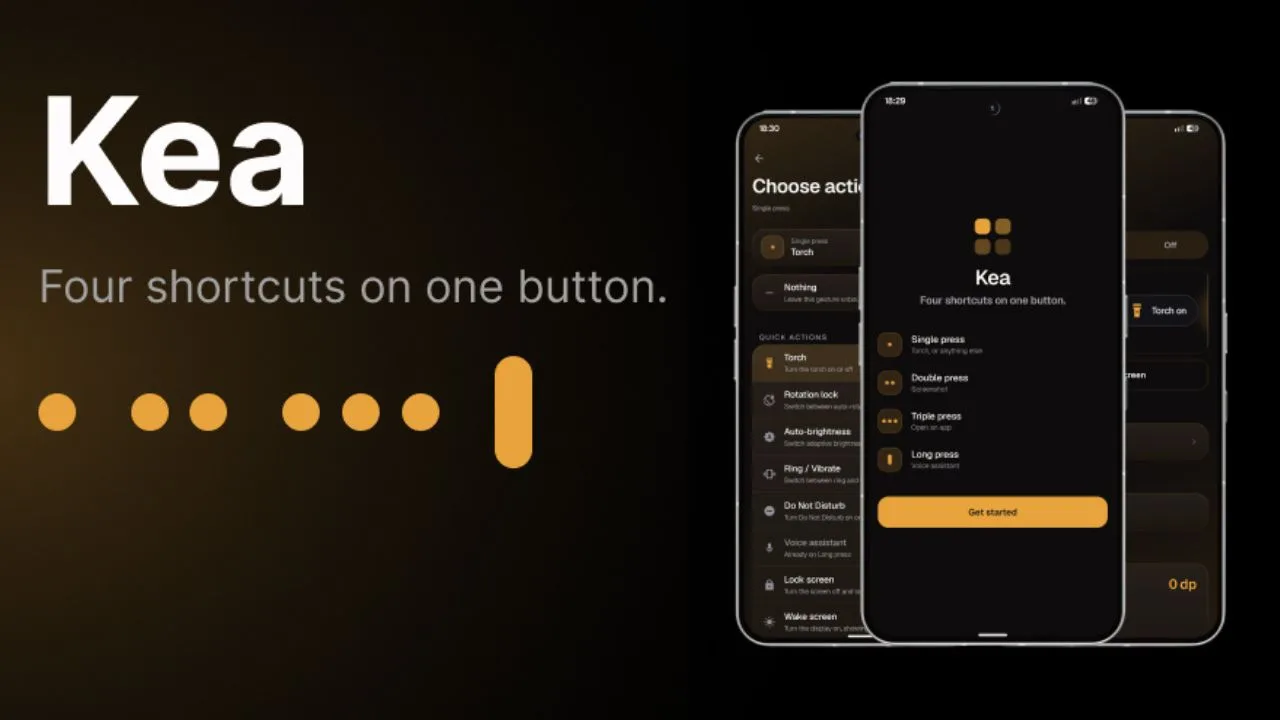
Kea is a lightweight Android application designed to let users remap the Essential Key and turn it into a more useful shortcut button. Instead of limiting the hardware key to Essential Space, users can assign different actions to single, double, triple and long presses.
The app is now available on the Google Play Store and is designed specifically for Nothing phones equipped with the Essential Key.
What is Kea: Essential Remapper?
Kea: Essential Remapper is an Android app created by TechiBoy Studios that allows users to customize the actions performed by the Essential Key.
The application is remarkably lightweight, with the setup video showing an app size of around 1.4 MB. Despite its small size, Kea provides a wide range of customization options.
Once configured, the Essential Key can perform different actions depending on how the button is pressed:
- Single press
- Double press
- Triple press
- Long press
This makes the Essential Key much more versatile than simply opening Essential Space.
Why remap the Essential Key?
The Essential Key is useful, but its default functionality is primarily focused on Essential Space. If you do not regularly use Essential Space, the physical button can feel somewhat limited.
Kea takes a different approach by allowing the same hardware button to become a customizable shortcut.

For example, you could use a single press to toggle the flashlight, double press to capture a screenshot, triple press to enable Do Not Disturb, and a long press to return to the Home screen.
The possibilities depend on the actions you choose inside the app.
Four different press actions
One of the main features of Kea is its support for four different button gestures.
Single Press
A single press can be assigned to actions such as toggling the flashlight.
Once configured, pressing the Essential Key can immediately turn the flashlight on or off without requiring you to open the notification shade or search through Quick Settings.
Double Press
Double pressing the Essential Key can trigger another action independently.
For example, Kea can be configured to take a screenshot with a double press. The app also provides a visual animation when performing actions such as screenshots.
Triple Press
The third gesture gives users another shortcut. One example demonstrated in the video is Do Not Disturb.
A triple press can toggle Do Not Disturb on or off, providing a quick way to change the phone’s notification state.
Long Press
The Essential Key can also be assigned to a long-press action.
For example, a long press can be configured to take you directly to the Home screen, even when you are currently inside another application.
This gives users four separate shortcuts from a single physical button.
More than 25 actions
Kea isn’t limited to just a few basic shortcuts.
The application offers 25+ actions that users can assign to the Essential Key. These include options such as:
- Flashlight
- Screenshot
- Screen recording
- Open an app
- App shortcuts
- Open a link
- Play/Pause
- Camera shutter
- Open camera
- Volume panel
- Power menu
- Auto brightness
- Do Not Disturb
- Home
This makes the Essential Key significantly more flexible, especially for users who want quick access to frequently used functions.
Screen recording from the Essential Key
Kea also supports screen recording as a button action.
For example, users can assign screen recording to a double press. Once configured, pressing the Essential Key twice can immediately start screen recording without manually opening the relevant controls.
The app can therefore turn the physical key into a shortcut for actions that would normally require several taps.
Custom visual feedback
Kea isn’t only about functionality. The app also includes customization for the visual feedback that appears when an action is triggered.
Users can choose between different visual overlay styles, including Halo and Capsule, or disable the visual overlay completely.
The position of the overlay can also be adjusted, allowing users to move it according to their preference.
There are additional controls for the visual feedback, including glow and display duration.
Customizable haptic feedback
The application also gives users control over haptic feedback.
Different haptic strength options are available, including:
- Light
- Medium
- Strong
- Off
This means users can decide whether they want a physical response whenever a shortcut is triggered, and how strong that response should be.
Match Kea with your phone’s appearance
Kea includes appearance customization as well.
Users can choose between:
- System
- Light
- Dark

The application also includes an accent color option. Changing the accent color updates the application’s interface, allowing users to make Kea better match their wallpaper or overall phone setup.
Fine-tune gesture timing
For users who want more control, Kea provides gesture timing settings.
These settings allow users to adjust things such as how long a button needs to be held before a long press is triggered and how the different press gestures are interpreted.
The app also includes a gesture testing area where users can test their configured actions before relying on them.
This can be particularly useful when experimenting with single, double, triple and long presses.

Lock-screen controls
Another useful feature is the ability to control which shortcuts are available while the phone is locked.
Users can choose which Essential Key actions should work on the lock screen.
For example, you might allow a single press to toggle the flashlight while preventing other shortcuts from being triggered when the phone is locked.
This gives users more control over what the physical button can do before the device is unlocked.
Why does Kea need Accessibility access?
Kea requires an Accessibility Service because this is used to detect hardware key presses.
The app explains that the Accessibility Service is used specifically to watch hardware key presses and not for other purposes. The setup process therefore asks the user to enable the required Accessibility permission.
After enabling it, Kea can detect the Essential Key presses and perform the actions assigned by the user.
Shizuku is required for part of the setup
There is an additional step during the initial configuration: Shizuku.
Kea uses Shizuku during setup to disable the existing Essential Space-related actions so that they do not conflict with the new remapped shortcuts.
The setup involves enabling Wireless Debugging, pairing Shizuku and then granting Kea the required access.
Inside Kea, users are instructed to disable the relevant Essential Space components, including the Essential Recorder and Essential Space actions.
This prevents the original Essential Space mapping from triggering at the same time as the custom Kea shortcut.
It is worth noting that this is the more technical part of the setup, but once the configuration is complete, the experience becomes much simpler.
Do you need to keep Shizuku running?
Interestingly, the video demonstrates that Shizuku does not necessarily need to remain running in the background after the remapping has been configured.
Once the Essential Key has been remapped, the Shizuku application can be stopped, while the configured shortcuts continue working.
However, Shizuku is still needed when you want to change the relevant Essential Space configuration or perform the setup again.
Restore Essential Space whenever you want
Kea doesn’t permanently lock you into remapping the Essential Key.
If you want to return to the original Essential Space functionality, the setup process can be repeated and the Essential Space-related options can be enabled again.
This means users can switch between the original Essential Space behavior and the custom remapping setup.
Backup and restore
Kea also includes a backup and restore feature.
Users can export their configuration as a JSON file. This can include the configured actions for single press, double press, triple press and long press.
There is also a reset option if users want to return to a fresh configuration.
This can be useful if you have spent time creating a specific button setup and want to keep a copy of it.
A lightweight app with a lot of customization
One of Kea’s interesting aspects is how much functionality it provides while remaining a very small application.
The app combines hardware-key remapping with gesture timing, visual feedback, haptic controls, appearance customization, lock-screen settings and configuration backup.
It also provides a dedicated setup section that can be revisited if the user runs into problems or wants to change the Essential Key configuration later.
Kea is designed for Nothing phones with the Essential Key
The application is aimed at Nothing phones that include the Essential Key hardware.
During the setup process, Kea can detect the device automatically, while also providing an option to manually configure the device.
Once the key has been detected, users can teach Kea which physical button they want to use for the remapping.
Although the setup process is somewhat lengthy, it is designed as a guided process, taking users through the required permissions and configuration steps.
Final thoughts
The Essential Key is an interesting hardware addition to Nothing phones, but its usefulness depends heavily on how much you use Essential Space.
Kea: Essential Remapper takes the same physical button and opens it up to much broader possibilities.
With four different press gestures, 25+ actions, lock-screen controls, screen recording, visual feedback customization, haptic controls, gesture timing and configuration backup, the Essential Key can become a genuinely useful shortcut rather than a button dedicated to a single feature.
The initial setup is the biggest hurdle because it involves Accessibility permissions, overlay access, background usage settings and Shizuku. However, once the configuration is completed, the remapped shortcuts can continue working without keeping Shizuku running.
For Nothing phone users who want more control over their Essential Key, Kea offers a simple idea: why limit a physical button to one feature when it can become four customizable shortcuts?
Kea: Essential Remapper is available through the Google Play Store.

Stay updated with latest tech news
Follow TechiBoy on Google to get updates on smartphones, gadgets, software updates, and more.





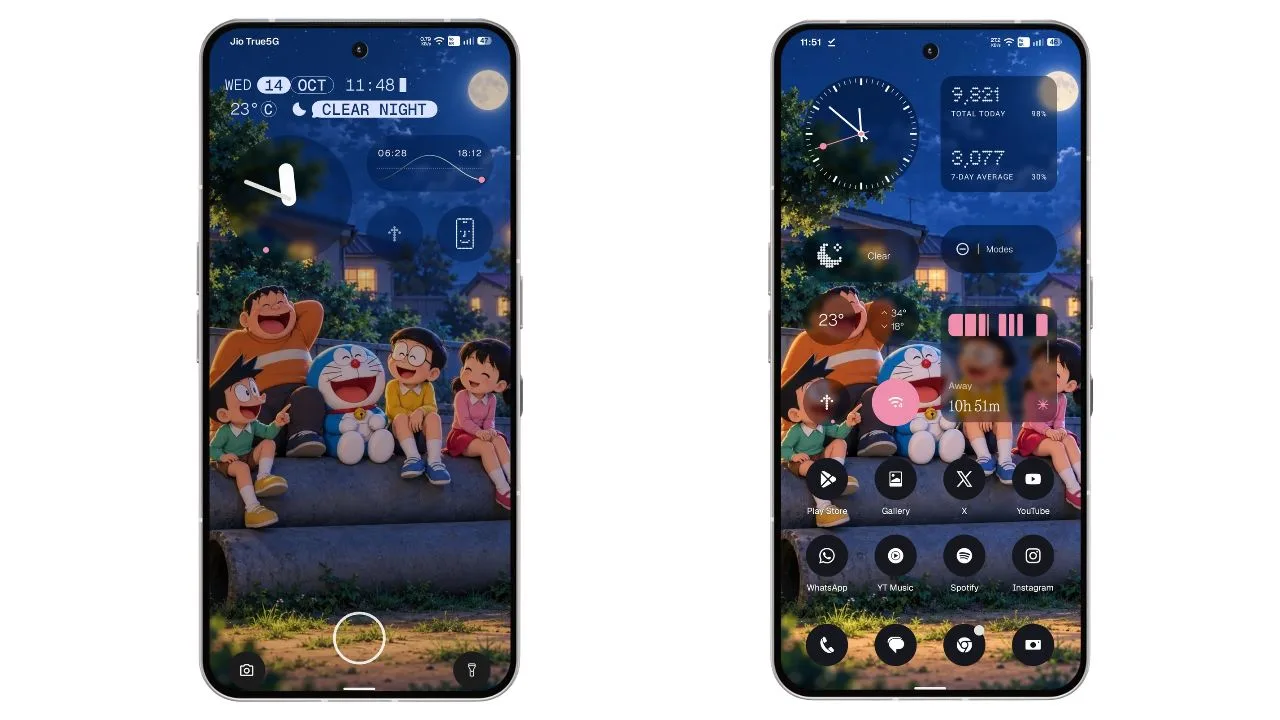
Nothing has started rolling out the stable Nothing OS 5.0 update for the Nothing Phone (3). The new update is based on Android 17 and brings a refreshed user interface, new customisation options, improved widgets, camera enhancements, and several system improvements.
The stable update is now rolling out to Phone (3) users who participated in the Open Beta programme. For beta users, the update size is 1.68 GB. The rollout is happening in phases, so it may take some time to reach every device.
Nothing OS 5.0 Update Details
- Device: Nothing Phone (3)
- Software version: Nothing OS 5.0
- Android version: Android 17
- Update size: 1.68 GB for beta users
- Update type: Stable update
New Translucent Theme Brings a Fresh Look
One of the biggest highlights of Nothing OS 5.0 is the new Translucent Theme. It brings a frosted-glass look to the Launcher, giving the interface a fresh and modern appearance.
The theme also uses subtle accent colours inspired by the current wallpaper. Users can enable it by going to Settings > Customisation > Theme & Style > Translucent.

Nothing has also refined the status bar icons, updated the Settings interface, and introduced the new Geist typeface. These changes make the overall interface look more consistent.
Two New Lock Screen Clock Styles
Nothing OS 5.0 brings two new clock faces to the lock screen: Gooey and Micrographics. While Gooey was already available in the Open Beta, the stable update introduces Micrographics as another option for users.

Gooey offers a bold and playful look with fluid shapes, giving the lock screen a unique appearance.
Micrographics takes inspiration from the graphic design of Nothing’s hardware. It brings the date, time, weather, and upcoming meetings together in one glanceable view, making it easier to check important information directly from the lock screen.

Users can also customise the clock colour to match their preferred style. Along with these new clock faces, Nothing OS 5.0 updates the wallpaper gallery and improves the overall customisation experience.
New Glyph App and Separate Quick Settings
The update introduces a dedicated Glyph app that makes it easier to access and manage Glyph Interface settings.
Another major change is the option to separate Quick Settings and Notifications into different panels. Users can enable this option through the system settings.
Nothing OS 5.0 also allows users to arrange multiple home screen app icons in bulk, making it easier to organise the home screen without moving every icon individually. A new three-colour status bar indicator also helps users identify sensitive access, location, and AI processing activity.
New Widgets and Camera Improvements
Nothing OS 5.0 brings several new widgets, including Collector widgets that let users decorate their home screens with photos. The Away Time widget helps users track time spent away from their phones, while Glyph Timer adds another useful option to the widget drawer.
The Camera app also receives multiple improvements. Users get a new Tuning feature with seven adjustable effects, improved Presets editing, and a new 2×2 Presets widget.
Video recording has also been enhanced with Filters and Tuning support, Dual-view Video, and H.265 encoding. Nothing has also improved several camera functions, including zoom, close-up shooting, QR scanning, Google Lens, and Motion Photo playback.
Other Improvements in Nothing OS 5.0
Apart from the visual changes, the update includes several useful system improvements:
- Expanded Dark Theme support for more apps.
- Adjustable HDR brightness intensity.
- Faster Essential Voice transcription.
- Improved lock screen shortcut interactions.
- One-tap Bluetooth connection and disconnection from Quick Settings.
- Improved Live Updates.
- Noto 3D Emoji support in Gboard.
- Better transition animations and interface refinements.
These additions aim to improve the everyday experience of using the Nothing Phone (3).
How to Download Nothing OS 5.0 Stable Update
Nothing Phone (3) users can manually check for the update by following these steps:
- Open Settings on your phone.
- Go to System.
- Tap System Update.
- Check for the latest update and download it if available.
- Install the update and restart your phone if required.
Since the update is rolling out in phases, it may not be available to everyone immediately. .
Final Words
Nothing OS 5.0 is a major update for the Nothing Phone (3), bringing Android 17 along with a new Translucent Theme, fresh lock screen clocks, new widgets, Glyph improvements, and camera enhancements.
The new design and clock styles are among the most noticeable changes, while the additional system features make the update more useful for everyday users. If you own a Nothing Phone (3), check your phone’s system settings to see whether the stable update is available.
What do you think about the new Translucent Theme in Nothing OS 5.0? Let us know in the comments.
Stay updated with latest tech news
Follow TechiBoy on Google to get updates on smartphones, gadgets, software updates, and more.
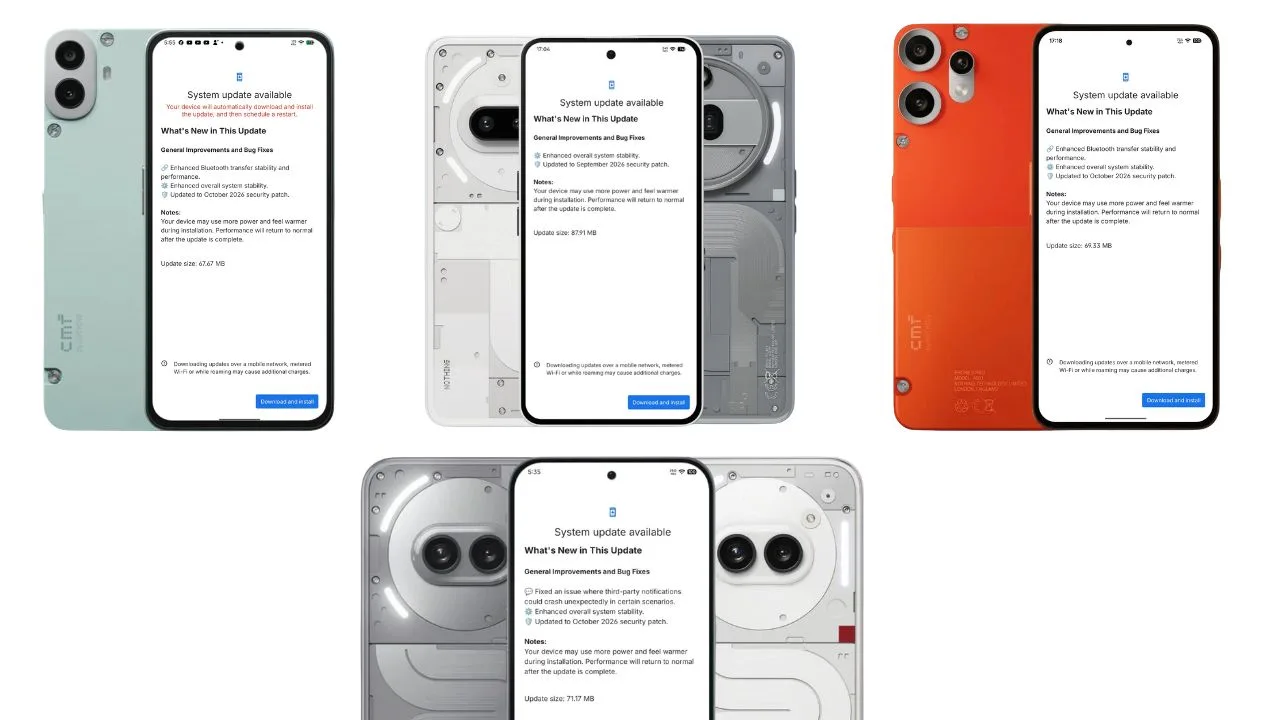
Nothing has started rolling out new Nothing OS 4.1 software updates for six smartphones across its Nothing and CMF lineups. The updates focus on system stability, bug fixes, Bluetooth transfer improvements, and the latest security patches.
The rollout covers the Nothing Phone (3a), Phone (3a) Pro, Phone (2a), Phone (2a) Plus, CMF Phone 2 Pro, and CMF Phone 1. While some devices are receiving improvements to Bluetooth connectivity, others are getting fixes for notification-related crashes.
Nothing OS 4.1 Update: Supported Devices and Update Sizes
Here is the complete list of devices receiving the updates, along with their respective download sizes.
| Smartphone | Update size | Security patch |
|---|---|---|
| Nothing Phone (3a) | 87.91 MB | September 2026 |
| Nothing Phone (3a) Pro | 87.91 MB | September 2026 |
| Nothing Phone (2a) | 71.17 MB | October 2026 |
| Nothing Phone (2a) Plus | 71.17 MB | October 2026 |
| CMF Phone 2 Pro | 69.33 MB | October 2026 |
| CMF Phone 1 | 67.67 MB | October 2026 |
Nothing Phone (3a) and Phone (3a) Pro Get Nothing OS 4.1 Update
The Nothing Phone (3a) and Phone (3a) Pro are receiving a new Nothing OS 4.1 update weighing 87.91 MB.
According to the update changelog, the latest firmware focuses on improving overall system stability and includes the September 2026 Android security patch.
Changelog:
- Enhanced overall system stability.
- Updated to the September 2026 security patch.
Nothing Phone (2a) and Phone (2a) Plus Receive October Update
The Nothing Phone (2a) and Phone (2a) Plus are receiving a 71.17 MB Nothing OS 4.1 update with bug fixes and security improvements.
One of the key changes addresses an issue where notifications from third-party applications could unexpectedly crash in certain scenarios. The update also enhances overall system stability and includes the October 2026 security patch.
Changelog:
- Fixed an issue where third-party notifications could crash unexpectedly in certain scenarios.
- Enhanced overall system stability.
- Updated to the October 2026 security patch.
CMF Phone 2 Pro Gets Nothing OS 4.1 Update
The CMF Phone 2 Pro is receiving a 69.33 MB software update. The latest firmware brings improvements to Bluetooth transfer reliability and overall system stability.
The update also includes the October 2026 security patch.
Changelog:
- Enhanced Bluetooth transfer stability and performance.
- Enhanced overall system stability.
- Updated to the October 2026 security patch.
CMF Phone 1 Receives Nothing OS 4.1 October Update
The CMF Phone 1 is also receiving a new Nothing OS 4.1 update, with a download size of 67.67 MB.
Similar to the CMF Phone 2 Pro update, this release improves Bluetooth transfer stability and performance, alongside general system stability improvements and the October 2026 security patch.
Changelog:
- Enhanced Bluetooth transfer stability and performance.
- Enhanced overall system stability.
- Updated to the October 2026 security patch.
How to Download the Latest Nothing OS 4.1 Update
Users can manually check for the latest software update on their smartphones by following these steps:
- Open Settings on your Nothing or CMF phone.
- Navigate to System and open System Update. The exact menu path may vary by software version.
- Check for available updates.
- If the update is available, tap Download and install.
- Follow the on-screen instructions to complete the installation.
As with other OTA software releases, availability may vary by device and rollout region. If the update has not appeared on your phone yet, check again later.
Final Thoughts
The latest Nothing OS 4.1 updates bring incremental but useful improvements across six Nothing and CMF smartphones. The Phone (2a) series receives a fix for third-party notification crashes, while the CMF Phone 1 and CMF Phone 2 Pro benefit from improved Bluetooth transfer stability.
It is worth noting that the Phone (3a) and Phone (3a) Pro update screens list the September 2026 security patch, whereas the other four devices list the October 2026 patch. Users should check their individual device’s update changelog to confirm which security patch is included.
Stay updated with latest tech news
Follow TechiBoy on Google to get updates on smartphones, gadgets, software updates, and more.
News
CMF by Nothing Announces Its First Portable Speakers, CMF Speaker S and Speaker M, Launching on October 12
CMF by Nothing is preparing to enter the portable speaker market with its first speaker lineup. The brand has announced the CMF Speaker S and CMF Speaker M, which are scheduled to launch on October 12, 2026.
The announcement marks a new product category for CMF, which already offers smartphones, earbuds, headphones, smartwatches and accessories. The company teased the upcoming speakers on its official social media channels, revealing their names and launch date.
CMF Speaker S and Speaker M: What We Know So Far
CMF has shared a teaser featuring the upcoming speakers, but the company has yet to officially reveal their complete specifications, pricing and availability details.

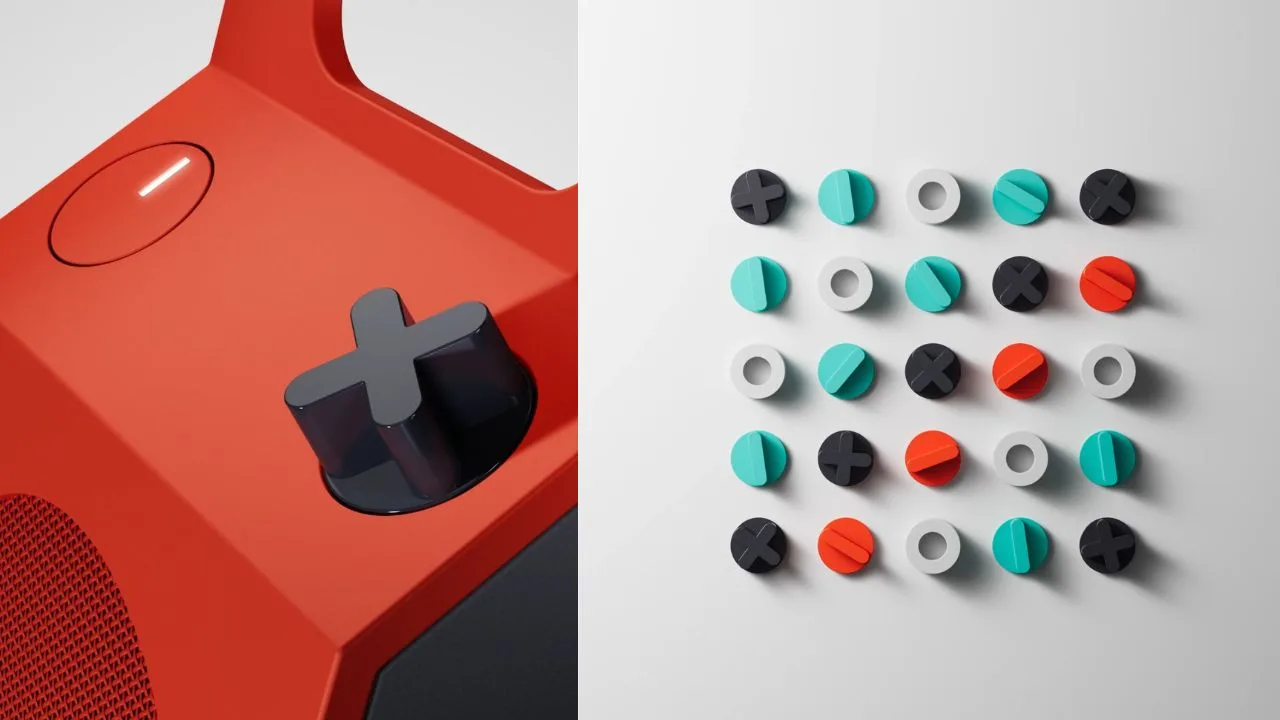
The product names suggest that the lineup will include two models: the Speaker S and the Speaker M. Their designs appear to follow CMF’s distinctive approach, with bold styling and physical controls.
According to early images and reports, the speakers feature a box-like design with a built-in carrying handle and an orange control knob. The larger Speaker M has also appeared in leaked retail listings with two speaker grilles, while the smaller Speaker S features a single prominent grille.
These design details and reported specifications remain subject to confirmation at launch.
Launch Date and Availability
CMF by Nothing has confirmed that the Speaker S and Speaker M will launch on October 12, 2026. The company is expected to reveal their full specifications, features and pricing at the official launch.
Details regarding availability and pricing in India have not yet been officially confirmed.
Stay updated with latest tech news
Follow TechiBoy on Google to get updates on smartphones, gadgets, software updates, and more.